

Google has been adding AI features across Search, Chrome, Gemini, and other products. For some people, these features are useful. For others, they get in the way.
Moreover, you may prefer traditional search results instead of an AI-generated summary.
You may not want Gemini suggestions appearing in your Google apps. Or you may simply want more control over how Google’s AI features use your information.
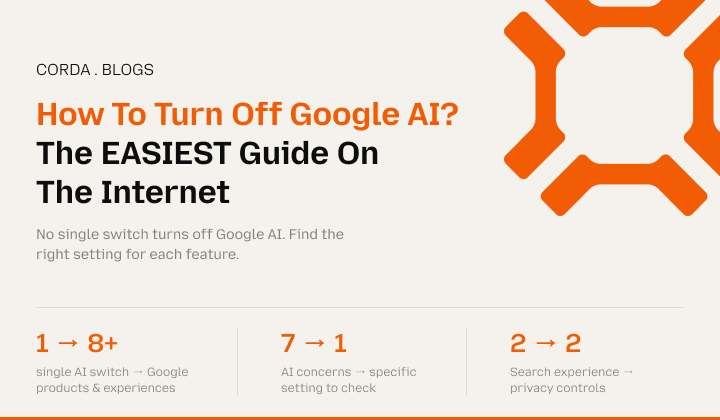
The frustrating part is that no single master switch will help you figure out how to turn off Google AI.
Different Google products have different AI settings. So the right way to turn off Google AI depends on which AI feature you’re trying to remove.
On that note, this blog will break down how to turn off Google AI entirely – the steps are simple and easy to execute.
Stay tuned.
Can You Turn Off Google AI Completely?
Not with one universal setting. Google’s AI features are spread across different products and experiences, including:
- Google Search
- AI Overviews
- AI Mode
- Gemini
- Chrome
- Google Workspace
- Android
- Google Photos
- YouTube and other Google services
Turning off an AI feature in one product doesn’t necessarily disable AI everywhere else.
For example, changing a Search setting won’t automatically disable Gemini. And that’s why you need to identify the specific Google AI feature you don’t want to use.
How To Turn Off AI Overviews In Google’s Traditional Search?
AI Overviews are Google’s AI-generated summaries that can appear on top of certain search results.
As a result, if you don’t want to see an AI Overview, Google does not generally provide a simple account-wide switch that permanently removes the feature from Search.
Instead, Google provides a way to access traditional search results through Web results.
Moreover, when an AI Overview appears, look for the Web filter or use Google’s Web search option.
This takes you to a results page containing traditional web links rather than the AI Overview presentation.
The important distinction is that this is not the same as permanently turning AI Overviews off. Instead, you are choosing a different search experience for that search.
Use Google’s Web Filter For Traditional Results:
If your main problem is AI-generated answers appearing before ordinary links, the Web filter is the simplest workaround.
So, search for what you need as usual. Then select ‘Web’ from the search filters. You’ll get a more traditional list of web results.
This can be particularly useful when you’re researching a topic and want to inspect the original sources yourself rather than relying on a generated summary.
However, the exact placement and availability of search filters can vary depending on your device, region, language, and Google Search interface.
What About Google’s AI Mode?
AI Mode is different from AI Overviews.
AI Overviews can appear alongside traditional search results.
However, AI Mode is a more conversational Search experience designed around longer questions and follow-up interactions.
So, if you don’t want to use AI Mode, you don’t have to use it. You can continue using Google’s regular Search interface and traditional search filters where available.
But simply avoiding AI Mode does not necessarily remove AI Overviews from ordinary searches. Why? Because these are separate Search experiences.
Turning Off Gemini:
If you’re talking about Google’s Gemini assistant rather than AI features in Search, the steps are different.
On the web, you can simply stop using Gemini.
Also, if Gemini is integrated into your phone or Google apps, however, there may be additional settings controlling how the assistant behaves.
On Android devices, for example, Gemini can be configured as the phone’s assistant.
Depending on your device, account, and Google’s current software configuration, you can switch back to Google Assistant.
The exact menu names can change as Google updates Android and Gemini.
How To Stop Using Gemini Like An Android Assistant?
If Gemini has replaced your usual Google Assistant and you want to switch back, open your Android device’s assistant settings.
The exact path varies by phone and version. However, you can generally look for settings related to: Digital assistant → Google → Assistant.
Or you can also search your Settings app for ‘Digital assistant.’
Moreover, if Google Assistant is available for your account and device, you may be given the option to switch between Gemini and Google Assistant.
Keep in mind that Google has been changing how Gemini and Assistant work across devices, so older instructions may not match your current menus.
How To Turn Off Gemini In Google Messages And Other Apps?
Some Google services can integrate Gemini or offer Gemini-powered features directly inside the app.
In these cases, look for settings within the individual application.
For example, a Google app may have a Gemini or AI-related option under: Settings → Gemini. Or you will get a similar menu.
There isn’t a single setting that necessarily removes Gemini functionality from every Google application. This is why it helps to identify the exact app before changing anything.
How To Manage Gemini Activity?
There is another issue worth separating from simply turning Gemini off.
You may not want Google to retain your Gemini activity in the same way. Why? Because Google provides controls for managing Gemini Apps Activity.
Depending on your account and settings, you can review or change whether Gemini activity is saved and how long it is retained.
This is different from disabling Gemini itself. You can therefore have a situation where Gemini is still available, but your activity settings are different.
Also, if your concern is privacy rather than the AI interface itself, activity controls may be more relevant than trying to disable every AI feature.
How To Manage Google AI Personalization?
Google also uses account-level settings to personalize experiences across its products. Your Google Account contains controls for things such as:
- App & Web Activity
- YouTube History
- Location History
- personalized experiences
- Gemini activity
These settings affect data collection and personalization in different ways. They shouldn’t be treated as a universal ‘AI off’ button.
Instead, use them to control the specific types of activity you want Google to save or use.
Can You Remove AI From Google Search Results With a Browser Extension?
On desktop, some browser extensions and custom search tools can modify how Google Search results are displayed.
For example, a tool may hide AI-generated sections and leave traditional results visible. This can be useful if you consistently want a cleaner search page.
But third-party extensions come with their own considerations. Before installing one, check:
- who developed it
- what permissions it requests
- whether it reads your browsing activity
- whether it injects advertising
- how frequently it is updated
- whether it works with your current browser
You’re potentially giving an extension access to information about your browsing, so don’t install an unknown tool simply because it promises to remove AI.
Can You Turn Off Google’s AI Search On Your Phone?
This depends on what you mean by ‘AI Search.’
As a result, if you’re seeing AI Overviews in Search, there may not be a permanent account-level switch to remove them.
But if you’re using Gemini as your phone assistant, you can look for the device’s digital-assistant settings.
Additionally, if you’re using a Google app with built-in Gemini features, check that application’s settings.
In other words: Search AI, Gemini, and app-specific AI controls are separate. That distinction saves a lot of frustration.
Can You Turn Off Google AI On Chrome?
Chrome has also introduced AI-powered features, but Chrome AI is not the same thing as Google Search AI.
Depending on your Chrome version, operating system, account, and region, AI features may appear in different parts of the browser.
If anyone wants to reduce AI functionality in Chrome, check ‘Chrome → Settings,’ and look for settings related to AI, experimental features, or specific features that use generative AI.
Don’t assume that disabling one Chrome AI feature disables Gemini or AI Overviews in Search. It doesn’t.
What Happens If You Turn Off App And Web Activity?
This is another setting that is often confused with AI controls.
Turning off App and Web Activity changes how Google saves certain activity associated with your account.
It does not mean ‘Google AI is now disabled.’
In fact, search can still work. Google can still provide AI-powered features where they are available. And Gemini can still exist as a Google product.
So, if your goal is privacy, review your activity controls. However, if your goal is removing AI-generated search results, look at Search-specific options instead.
Those are different objectives.
Why Doesn’t Google Have One ‘Turn Off AI’ Button?
Google’s AI features aren’t one single product. They’re being integrated into different services and experiences.
- Search has its own AI features.
- Gemini is an AI assistant.
- Chrome has its own AI-related functionality.
- Workspace has AI features.
- Android can use Gemini.
Each product has its own settings and availability. That makes a single global switch difficult.
Also, it means that instructions published six months ago may no longer match what you see today.
What If You Just Want Traditional Google Search?
If your goal is simple – something like ‘I want links, not an AI-generated answer ’- then you don’t necessarily need to disable Google’s AI products.
Instead, you can use traditional Search features where available. The Web filter is particularly useful for this purpose.
Also, you can search specific websites directly, use Google’s search operators, or go directly to trusted sources when you already know where you want to look.
In addition, for research-heavy searches, this can sometimes be faster than trying to remove every AI feature from your Google account.
What If Your Concern Is Privacy?
If privacy is the reason you’re looking for ways to turn off Google AI, approach the problem differently.
Review the Google Account settings associated with:
- Gemini Apps Activity
- App & Web Activity
- personalization
- connected apps
- Voice and Assistant activity
- other activity controls relevant to the Google services you use
Then decide what you actually want to limit.
For example, there is a meaningful difference between ‘I don’t want AI-generated summaries in Search’ and ‘I don’t want Google saving my interactions with Gemini.’
The first is primarily a product-experience preference. The second is a data and privacy preference. They require different settings.
A Simple Way To Decide What To Change:
Start with the problem you’re actually experiencing.
| What you don’t want | What to look at |
| AI summaries in Search | Google Search / Web filter |
| AI Mode | Regular Google Search |
| Gemini assistant | Digital assistant settings |
| Gemini activity being saved | Gemini Apps Activity |
| AI features in a specific Google app | That app’s settings |
| Chrome AI features | Chrome settings |
| Personalized Google experiences | Google Account activity and personalization settings |
This is much easier than searching for one mythical ‘disable Google AI’ setting.
What You Can’t Reliably Do?
Be careful with articles promising a permanent trick that will:
- remove every Google AI feature
- disable AI across your entire Google Account
- guarantee that AI Overviews never appear
- permanently restore an old version of Google Search
Google controls its Search interface and can change how these experiences work. Also, browser workarounds can break when the underlying interface changes.
As a result, if you find an old guide that tells you to change a specific URL parameter or hidden Search setting, it may no longer work.
Always distinguish between an official setting and a temporary workaround.
Read Also: